
This article provides detailed steps on how to start a Zoho Assist remote session when asked to by a VCIT technician. Unless you have been instructed by a VCIT technician to follow these steps, please refrain from doing so.
Instructions for Microsoft Edge
- Open Google Chrome on your local device, not from within your Cloud Desktop
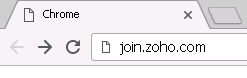
- In the address bar at the top of the Chrome window, clear the box and then type in join.zoho.com
- Type in the meeting key provided to you by your VCIT technician and click "JOIN SESSION"

- You may see a popup message titled "You'll need a new app to open this..." - ignore this message and instead click on the Download button in behind
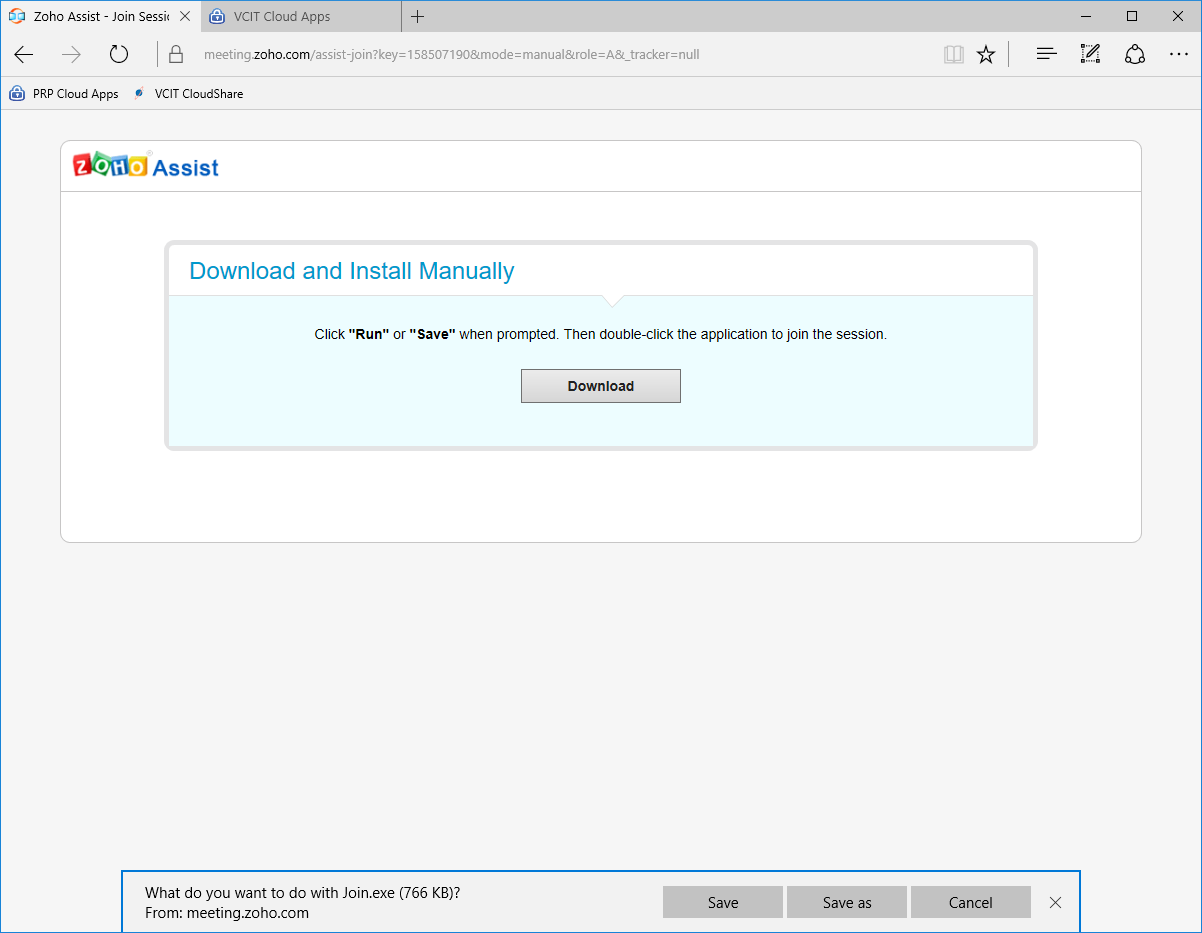
- At the bottom of the window, click on the Save button
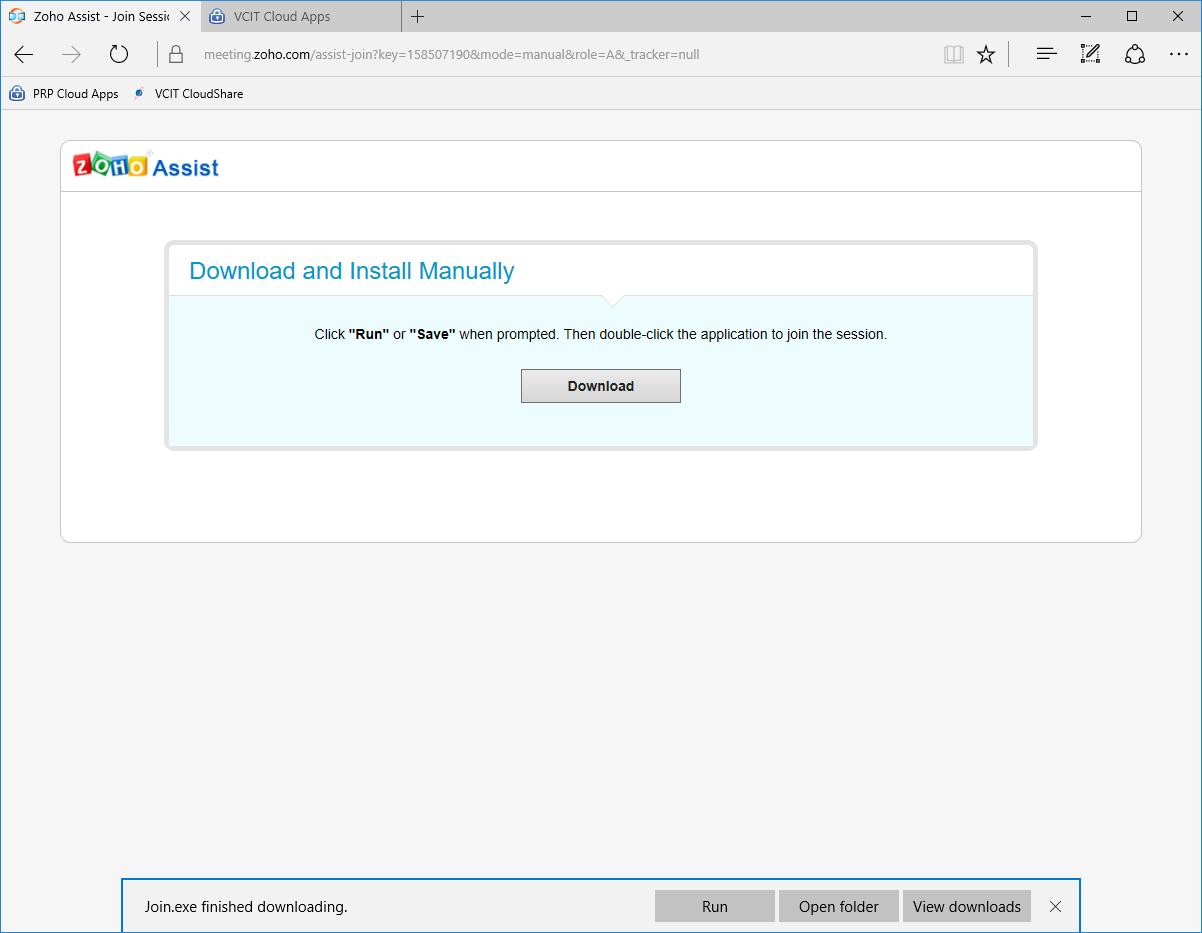
- Once the download completes, click on the Run button
- If a security warning appears, continue
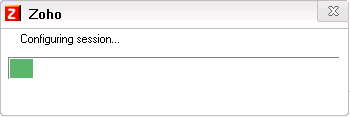
- Zoho Assist will now open
- When prompted "You are about to join a Remote Support session...", read the message, then click Continue
- The VCIT technician should confirm that he/she can now see your desktop
Comments
0 comments
Article is closed for comments.